অনুগ্রহ করে অপেক্ষা করুন। ছবি আটো ইন্সার্ট হবে।





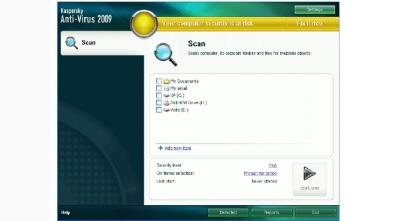
Boot from the Kaspersky Rescue Disk to scan and remove threats from an infected computer without the risk of infecting other files or computers.........
Burn this ISO image to a CD, insert it into the infected system's CD-ROM drive, enter the PC's BIOS, set it to boot from the CD and reboot the computer.
This lists the Gentoo-specific options, along with a few options that are built-in to the kernel, but that have been proven very useful to our users.
Also, all options that start with "do" have a "no" inverse, that does the opposite. For example, "doscsi" enables SCSI support in the initial ramdisk boot, while "noscsi" disables it.
Download link below there...
Click This Link
Click This Link
Click This Link
How to Use kaspersky Rescue Disk as Bootable DOS Antivirus:
1. Download Kaspersky Rescue Disk ISO file..
2. Burn the Kaspersky Rescue Disk ISO image to a CD media using CD/DVD burning software or Magic iso maker..
3. Once finish burn Kaspersky Rescue Disk into bootable CD media, insert Bootable kaspersky Rescue Disk CD into CD ROM and boot the computer by loading CD ROM media first.
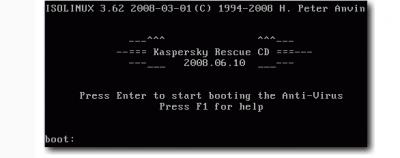
4. Then a DOS screen will be loading below. Hit Enter to start booting the DOS Kaspersky AntiVirus using Linux.
5. Finally a Kaspersky AntiVirus 2009 GUI will be appear. Just check the hard drives that you want to scan virus or other malicious thread.
As Kaspersky Rescue Disk is the most secure way to remove virus or other thread from your computer because sometimes is tough to remove virus when windows is running. So the most effective way of removing virus is when they are inactive. Plus more, Kaspersky Rescue Disk works as on-demand virus scanner that allows you to scan and remove virus without booting in Windows.
Otherwise you can also use BITDEFENDER
Free BitDefender Rescue CD with Auto Update to clean Virus...

Download link....
Click This Link
সর্বশেষ এডিট : ১৩ ই মে, ২০০৯ বিকাল ৪:৩৩